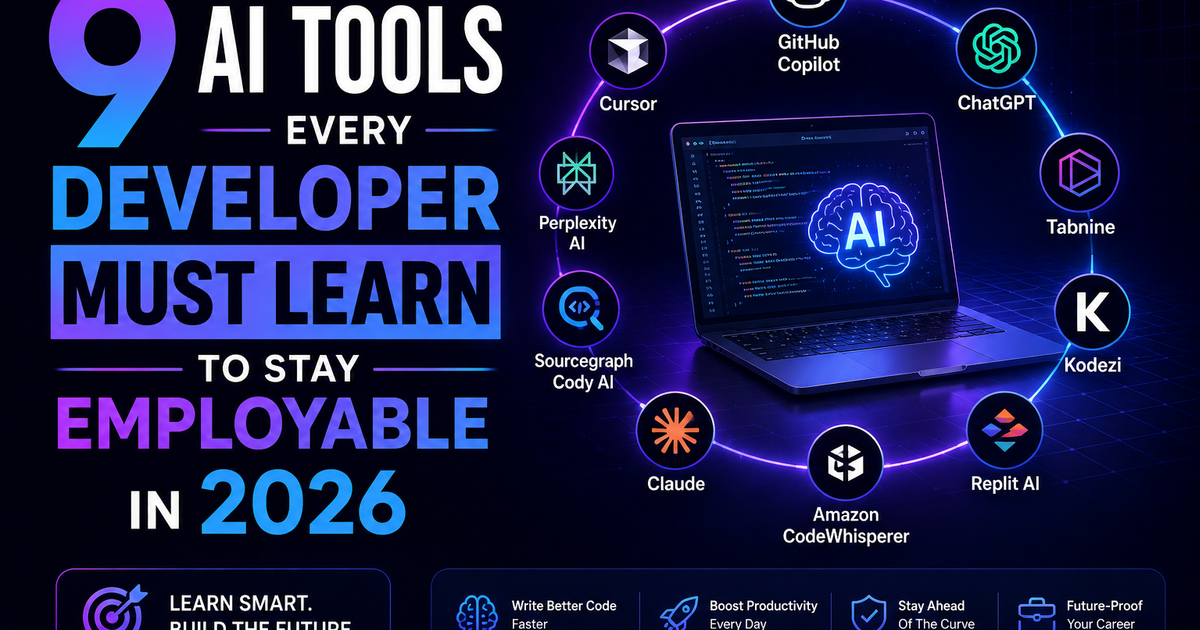
9 AI Tools Every Developer Must Learn to Stay Employable in 2026
You are not being replaced by AI. You are being replaced by a dev who knows AI. Here are 9 tools – Copilot, Cursor, Claude, v0, and more – that keep you employable in 2026. No fluff. Just which ones matter and why.
You are not being replaced by AI. You are being replaced by a developer who knows how to use AI.
Let me tell you something that might make you uncomfortable.
I have been writing code for years. I have built systems that handle millions of requests. I have debugged production fires at 2 AM. I am not a junior developer.
And I use AI tools every single day.
Not because I am lazy. Because I am competitive.
Here is the reality in 2026: The developers who refuse to learn AI tools are not "purists." They are not "real engineers." They are simply falling behind.
I have watched it happen. A senior engineer who takes three days to write a feature that a mid-level engineer with Cursor or Copilot builds in six hours. The output is the same quality. The mid-level engineer just used the right tools.
You do not have to like AI. You do not have to trust it completely (you shouldn't). But you do have to learn it.
Because hiring managers are no longer asking "do you know AI?" They are asking "which AI tools do you use daily?"
If your answer is "none," you are not staying employable.
This article is about the nine AI tools that will keep you relevant in 2026. I use most of these myself. The ones I don't use, I have tested and seen work for engineers I respect.
Let me walk you through each one.
What Makes an AI Tool Worth Learning?
Not every AI tool deserves your time. Before we get into the list, let me define my filter.
An AI tool is worth learning if it meets at least three of these five tests:
| Test | What It Means |
|---|---|
| Saves meaningful time | At least 30% faster than doing it manually |
| Produces production-quality output | Not just "cool demo" code – code you can ship |
| Has staying power | Not a weekend project from a solo developer (unless it's already viral) |
| Integrates with your existing workflow | Works inside VS Code, CLI, or your daily tools |
| Has a community or company behind it | Documentation, updates, support |
If a tool is just a wrapper around ChatGPT with a pretty UI, skip it. If it solves a real problem you actually have, learn it.
Here are the nine that pass this test.
Tool #1: GitHub Copilot
What it is: An AI pair programmer that autocompletes code, functions, and entire files inside your editor (VS Code, JetBrains, Neovim, etc.).
Why you must learn it in 2026:
Copilot is no longer optional. It is the baseline.
If you are writing code line by line without AI autocomplete, you are working at 2023 speed. Every other developer is moving faster.
Copilot learns from billions of lines of public code. When you type a comment like // function to calculate shipping cost based on weight and distance, Copilot writes the function. You review it. You adjust it. You move on.
What it actually does:
| Task | Without Copilot | With Copilot |
|---|---|---|
| Writing a React component with useState and useEffect | 10-15 minutes | 3-5 minutes |
| Generating a Python function to parse CSV and handle edge cases | 8 minutes | 2 minutes |
| Writing repetitive unit tests | 20 minutes | 5 minutes |
| Converting a callback to async/await | 5 minutes | 30 seconds |
The catch:
Copilot makes mistakes. Confident, beautiful, wrong mistakes. It will hallucinate function names that don't exist. It will import libraries you don't have. It will write code that looks correct but has subtle bugs.
You cannot trust it blindly. You must review everything. Think of it as an intern who works incredibly fast but sometimes lies.
How to learn it:
Install the Copilot extension in VS Code. Start with simple completions (type function getData and see what it suggests). Gradually use it for larger blocks. Learn to write good comments that guide the suggestion. Learn to reject bad suggestions quickly.
Pricing: $10/month or $100/year. Free for open-source maintainers and students.
Employability impact: High. Many companies now ask "do you use Copilot?" in technical screens. Not knowing it is a yellow flag.
Tool #2: Cursor
What it is: A VS Code fork built from the ground up for AI-assisted development. It's like Copilot on steroids, with deeper codebase awareness.
Why you must learn it in 2026:
Cursor solves Copilot's biggest weakness: context.
Copilot sees the file you are editing. Cursor sees your entire codebase. It knows your other files, your functions, your variable names, your patterns.
This means Cursor can:
- Refactor a function and update every file that calls it
- Generate a new component that matches your existing style (not random public code style)
- Answer questions like "where is the payment validation logic?" by scanning your project
- Explain a complex piece of legacy code in plain English
Real example from my own work:
I had a 4-year-old Express API with messy error handling scattered across 20 files. I asked Cursor: "Find every place we throw a 500 error and replace it with our standardized error handler."
Cursor found 14 instances. It generated the changes. I reviewed and approved 12 of them (two were edge cases it misunderstood). What would have taken me half a day took 20 minutes.
The catch:
Cursor can overwhelm your computer if your project is huge (100k+ files). And it is not free. But for professional work, the time savings pay for itself in a week.
How to learn it:
Download Cursor (it imports your VS Code settings). Open a project you know well. Ask Cursor a question about it ("how does authentication work here?"). Watch how it scans your files. Then try a small refactor.
Pricing: Free tier (limited completions). Pro: $20/month. Business: $40/user/month.
Employability impact: Medium-high. Still newer than Copilot, but growing fast. Early adopters stand out.
Tool #3: Claude (Anthropic)
What it is: A large language model (like ChatGPT) but with significantly better coding ability, especially for complex logic and longer contexts.
Why you must learn it in 2026:
Claude's coding ability now exceeds GPT-4 on most benchmarks. But the real difference is context length.
| Model | Context window (approx) | What you can fit |
|---|---|---|
| GPT-4 (standard) | 8k-32k tokens | A few files |
| GPT-4 Turbo | 128k tokens | A medium codebase |
| Claude 3.5 Sonnet | 200k tokens | "The Great Gatsby" 3x over |
| Claude 3.5 Opus (newer) | 500k tokens | Entire small-to-medium codebase |
With a 500k token context, you can paste your entire backend into Claude and ask: "Find all the security bugs."
I have done this. It found an SQL injection vulnerability I missed for two years. In 30 seconds.
What Claude is best for:
| Task | Claude performance |
|---|---|
| Writing complex algorithms | Excellent |
| Explaining legacy code | Excellent |
| Generating documentation | Good (needs editing) |
| Refactoring large functions | Very good |
| Debugging obscure errors | Excellent (with full context) |
| Writing tests | Good |
The catch:
Claude is slower than Copilot or Cursor for quick completions. It is best for "sit down and think" tasks, not real-time autocomplete.
And Claude can be overconfident. Always ask: "Are you sure about that edge case?" It will often admit uncertainty if you push.
How to learn it:
Create a free account at claude.ai. Paste a piece of code you wrote years ago and barely understand. Ask: "Explain this to me like I am a junior developer." Then ask: "Rewrite this to be more maintainable."
You will be shocked at how well it works.
Pricing: Free tier (limited messages). Pro: $20/month. API: pay per token.
Employability impact: High. Being able to say "I use Claude for code review and refactoring" signals you are working at modern speed.
Tool #4: Continue (Open Source VS Code Extension)
What it is: An open-source alternative to Cursor. It connects VS Code to any LLM you want – local models, cloud models, or both.
Why you must learn it in 2026:
Not every company lets you send code to the cloud. Banks. Healthcare. Defense contractors. Anyone with strict data privacy rules.
Continue lets you run AI coding assistance completely locally using open-source models like:
- CodeLlama
- DeepSeek Coder
- StarCoder2
- Qwen-Coder
It is slower than cloud models. The code quality is slightly lower. But you can run it on your laptop with zero data leaving your machine.
What it is best for:
| Use case | Why Continue |
|---|---|
| Working on sensitive/proprietary code | Data never leaves your machine |
| No budget for Copilot/Cursor | Free and open source |
| Experimenting with different models | Switch between local and cloud |
| Offline development | Works without internet |
The catch:
Local models need a powerful laptop (16GB+ RAM, decent GPU). Running them drains battery. And the suggestions are not as good as Copilot or Claude.
But for privacy-conscious work, Continue is the only real option.
How to learn it:
Install the Continue extension in VS Code. Download a small model like CodeLlama-7B using Ollama or LM Studio. Connect Continue to that model. Start coding. Accept that suggestions will be slower and sometimes worse.
Pricing: Free (open source). Models are free. Hardware costs are yours.
Employability impact: Medium. Niche skill, but valuable for security-conscious companies. Mentioning "I have experience with local LLMs for air-gapped development" makes you stand out.
Tool #5: Phind
What it is: A search engine + AI coding assistant specifically for developers. It searches the web, reads documentation, and answers technical questions.
Why you must learn it in 2026:
Googling error messages is broken. You click five Stack Overflow links. You read three outdated answers. You try two solutions that don't work. You waste 20 minutes.
Phind does all of that for you in seconds.
Type an error message into Phind. It searches the web, reads the documentation, and gives you a direct answer with citations. It will even show you which solution worked for similar problems.
Real example:
I saw an error: Error: listen EADDRINUSE: address already in use :::3000
I typed that into Phind. It told me exactly how to find the process using port 3000 (lsof -i :3000) and how to kill it. It explained why this happens. It linked to the Node.js documentation.
What Phind is best for:
| Task | Phind vs Google |
|---|---|
| Debugging error messages | Phind wins (10x faster) |
| Finding latest library versions | Phind wins (reads changelogs) |
| Learning new frameworks | Tie (Phind summarizes, Google gives you links) |
| Understanding cryptic compiler errors | Phind wins significantly |
The catch:
Phind can invent API endpoints that don't exist. Always check the citations. Always verify before copying.
And Phind is not free forever. The generous free tier may shrink.
How to learn it:
Go to phind.com. Paste a real error message you are stuck on. Read the answer. Try the solution. Compare it to what Google gives you. You will never go back.
Pricing: Free tier (good for most developers). Pro: $15/month. Team: custom.
Employability impact: Medium. Not a requirement yet, but knowing it signals you optimize your debugging workflow.
Tool #6: v0 by Vercel
What it is: An AI tool that generates React/Next.js UI components from text descriptions or images. It's like having a frontend designer on demand.
Why you must learn it in 2026:
Frontend development is changing fast. Designers can now describe a component in plain English, and v0 will generate the code.
Example prompt: "A pricing card with three tiers. Basic: $29/month. Pro: $99/month. Enterprise: custom. Hover effect on each card."
v0 generates a fully functional React component with Tailwind CSS. It looks good. It works. It saves you 1-2 hours per component.
What v0 is best for:
| Use case | v0 performance |
|---|---|
| Landing page components | Excellent |
| Dashboards and tables | Good |
| Complex animations | Fair (needs manual tweaks) |
| Forms with validation | Good |
| Responsive layouts | Very good |
The catch:
v0 generates components that look like "Vercel style" – clean, modern, minimalist. If your design system is different, you will need to adapt the output.
And v0 does not handle complex state management well. It will generate useState hooks but can mess up useEffect dependencies.
How to learn it:
Sign up at v0.dev (free). Type a simple prompt: "A user profile card with avatar, name, email, and edit button." Watch the code appear. Paste it into your Next.js project. See how it looks. Then modify it.
Pricing: Free tier (good for most developers). Pro: $20/month for more generations and private components.
Employability impact: Medium-low for backend roles. High for frontend or full-stack roles. Being able to say "I use v0 to prototype UI components" impresses frontend-focused teams.
Tool #7: Mintlify (AI Documentation Generator)
What it is: An AI tool that generates documentation from your code – docstrings, READMEs, API references, even full documentation websites.
Why you must learn it in 2026:
Developers hate writing documentation. I hate writing documentation. You probably hate writing documentation.
But bad documentation costs companies millions in developer onboarding time, support tickets, and lost productivity.
Mintlify watches you write code. It suggests documentation as you go. It can generate an entire README from a codebase in seconds.
Real example:
I have a Python utility library with 15 functions. I have been "meaning to document it" for 18 months. Mintlify generated docstrings for every function in 20 seconds. They were 80% correct. I spent 10 minutes editing. Documentation done.
What Mintlify is best for:
| Task | Mintlify performance |
|---|---|
| Generating docstrings (JSDoc, Sphinx, etc.) | Excellent |
| Writing READMEs | Good (needs editing) |
| Creating API reference docs | Very good |
| Writing inline comments | Fair (often too verbose) |
The catch:
Mintlify is overly optimistic about its own suggestions. It will document a buggy function like it's perfect. You still need to review and test.
And Mintlify works best with clean, well-structured code. If your code is a mess, the documentation will also be a mess.
How to learn it:
Install the Mintlify VS Code extension. Highlight a function. Click the "Generate Docstring" button. Review what it wrote. Accept or edit. Repeat for five functions. You will see the pattern quickly.
Pricing: Free for basic features. Pro: $12/month. Enterprise: custom.
Employability impact: Low-medium. Not a hiring requirement, but it signals you care about maintainable code. Senior engineers notice.
Tool #8: Tabnine
What it is: The original AI code completion tool (predates Copilot by years). It offers on-premise deployment for companies that cannot send code to the cloud.
Why you must learn it in 2026:
Remember the privacy concern from Continue? Tabnine solves it differently – with enterprise-grade on-premise deployment.
You can run Tabnine completely inside your company's private cloud. The AI model never sees your code. Big banks, insurance companies, and government contractors use Tabnine for this reason.
Tabnine vs Copilot vs Continue:
| Feature | Copilot | Tabnine | Continue |
|---|---|---|---|
| Code quality | Excellent | Very good | Good (with local models) |
| Privacy | Sends code to Microsoft | On-prem option | Fully local |
| Speed | Fast | Fast | Slower with local models |
| Cost | $10-19/month | Free tier + Enterprise | Free |
| IDE support | VS Code, JetBrains, Neovim | All major IDEs | VS Code primarily |
The catch:
Tabnine's free tier is limited. The on-prem enterprise version is expensive (quoting required). For most individual developers, Copilot or Cursor is better.
But if you work at a regulated company, Tabnine might be your only option.
How to learn it:
Install the Tabnine extension in your IDE. Use the free tier for a week. If you are happy, consider the Pro plan. If your company needs on-premise, contact their sales team.
Pricing: Free tier (basic completions). Pro: $12/month. Enterprise: custom (on-premise quote).
Employability impact: Medium. Useful to mention on your resume if you have worked in regulated industries. "Deployed Tabnine enterprise for HIPAA-compliant development" is a strong bullet point.
Tool #9: Aider (Command-Line AI Pair Programming)
What it is: An AI coding assistant that works entirely from your terminal. You edit code in your normal editor, then run aider to ask for changes.
Why you must learn it in 2026:
Most AI coding tools live inside VS Code. What if you use Vim, Emacs, or a lightweight editor? What if you are SSH'd into a remote server with no GUI?
Aider does not care. It works from the command line.
You describe a change in plain English. Aider reads your files, writes the changes, and shows you a diff. You approve or reject.
Real example:
I was on a headless server (no VS Code) debugging a production issue. I needed to add logging to 12 different error handlers. I typed:
aider "Add a logging statement to every error handler that prints the error, the request ID, and the timestamp"
Aider edited 12 files. It added the logs. It used the existing logging library (it detected it). It kept my code style.
I reviewed the changes with git diff. I approved. Done.
What Aider is best for:
| Use case | Aider performance |
|---|---|
| Bulk refactoring across many files | Excellent |
| Adding logging, error handling, or boilerplate | Excellent |
| Generating new files from templates | Very good |
| Working over SSH (no GUI) | Perfect |
| Explaining code (not as good as Claude) | Fair |
The catch:
Aider is command-line only. No GUI. No mouse. You need to be comfortable with terminals, git, and diffs.
And Aider requires an API key for a cloud LLM (Claude, GPT-4, etc.). It is not free.
How to learn it:
Install Aider via pip: pip install aider-chat. Set your API key. Go to a small project. Type aider and then "add error handling to this function". Watch the magic happen.
Pricing: Aider is free (open source). But you pay for the LLM API usage (pennies per task).
Employability impact: Low-medium, but growing. Command-line proficiency + AI is a niche superpower. Mentioning Aider signals deep technical comfort.
How to Prioritize These Tools (Don't Learn All 9 at Once)
Learning nine new tools is overwhelming. You will not use all of them. Here is my recommendation based on your role.
Backend developers (your primary audience):
| Priority | Tool | When to learn |
|---|---|---|
| 1 | Copilot or Cursor | Now (this week) |
| 2 | Claude | This month |
| 3 | Phind | This month |
| 4 | Aider | Within 3 months |
| 5 | Tabnine or Continue | Only if privacy is a concern |
| 6 | v0 | Only if you touch frontend |
| 7 | Mintlify | Nice to have, not urgent |
Frontend developers:
| Priority | Tool | When to learn |
|---|---|---|
| 1 | v0 | Now |
| 2 | Copilot or Cursor | Now |
| 3 | Claude | This month |
| 4 | Phind | This month |
| 5 | Mintlify | This month (documentation is more critical on frontend) |
Full-stack developers:
Learn the backend list first. Add v0 as priority 3 instead of 4 or 5.
The One Skill These Tools Cannot Replace
I want to be very clear about something.
These tools make you faster. They make you more productive. They make you more employable.
They do not make you a better thinker.
AI tools are excellent at generating code. They are terrible at knowing what to build, why to build it, and whether it should be built at all.
The developers who thrive in 2026 are not the ones who prompt the fastest. The developers who thrive are the ones who:
- Understand the business problem
- Break it down into small, achievable tasks
- Use AI to execute those tasks quickly
- Review the output with critical thinking
- Know when to reject the AI's suggestion
AI tools are amplifiers. They amplify your existing skills. If you are a mediocre thinker, you will generate mediocre code faster. If you are a good thinker, you will generate good code faster.
Do not skip the fundamentals. Do not stop learning architecture, patterns, testing, and debugging. Those skills make you irreplaceable. AI tools just make you faster.
Frequently Asked Questions
Which AI coding tool is the absolute best?
There is no single best. Copilot and Cursor are best for real-time autocomplete. Claude is best for complex reasoning. Phind is best for debugging errors. Most professional developers use 3-4 of these tools daily, not just one.
Will AI replace developers?
No. But developers who use AI will replace developers who don't. The same way Excel didn't replace accountants – but accountants who used Excel replaced those who used paper ledgers.
Are these tools allowed at work?
Check your company policy. Many allow Copilot and Cursor but prohibit sending code to cloud LLMs like ChatGPT or Claude. If your code is sensitive, use Continue or Tabnine on-premise instead.
How much should I rely on AI-generated code?
Always review. Never trust blindly. AI makes beautiful, confident mistakes. Use AI for the first 80% of boilerplate and routine code. Write the final 20% of critical logic yourself or review it extremely carefully.
Do I need to pay for all of them?
No. Start with free tiers. Copilot has a free trial (then $10/month). Claude has a generous free tier. Phind is mostly free. Aider is free (you pay API usage). v0 has a good free tier. Only Cursor ($20/month) is worth paying for early.
What about ChatGPT?
ChatGPT is fine. But Claude is significantly better for coding. If you are using ChatGPT for development, try Claude for one week. You will switch.
How do I put AI tools on my resume?
Do not list "prompt engineering" as a bullet point. Instead, show outcomes: "Increased feature delivery speed by 40% using Cursor and Copilot" or "Used Claude to refactor legacy code, reducing bug rate by 25%."
The Bottom Line
Here is where we are in 2026.
Five years ago, knowing Git made you stand out. Three years ago, knowing Docker made you stand out. Now, knowing AI tools is the baseline.
The interview question is coming. It might be direct ("Which AI tools do you use?") or indirect ("How would you debug this error?"). But the interviewer will notice if you reach for Google and Stack Overflow like it's 2018.
They will also notice if you paste an error message into ChatGPT and blindly paste back the first answer.
The right answer is a toolkit. A set of tools you understand, use fluidly, and trust appropriately.
Copilot or Cursor for real-time code. Claude for reasoning and refactoring. Phind for debugging. v0 for frontend. Aider for bulk changes. Mintlify for documentation.
You do not need all nine. But you need a few.
Start with Copilot (or Cursor) and Claude. Use them for one week. Time yourself on a routine task. Compare with your old speed. You will never go back.
And when the layoffs come – because they always come – you will be the developer who gets things done.
Not because you are smarter. Because you use the right tools.
– Written by Fredsazy

Iria Fredrick Victor
Iria Fredrick Victor(aka Fredsazy) is a software developer, DevOps engineer, and entrepreneur. He writes about technology and business—drawing from his experience building systems, managing infrastructure, and shipping products. His work is guided by one question: "What actually works?" Instead of recycling news, Fredsazy tests tools, analyzes research, runs experiments, and shares the results—including the failures. His readers get actionable frameworks backed by real engineering experience, not theory.
Share this article:
Related posts
More from AI
May 27, 2026
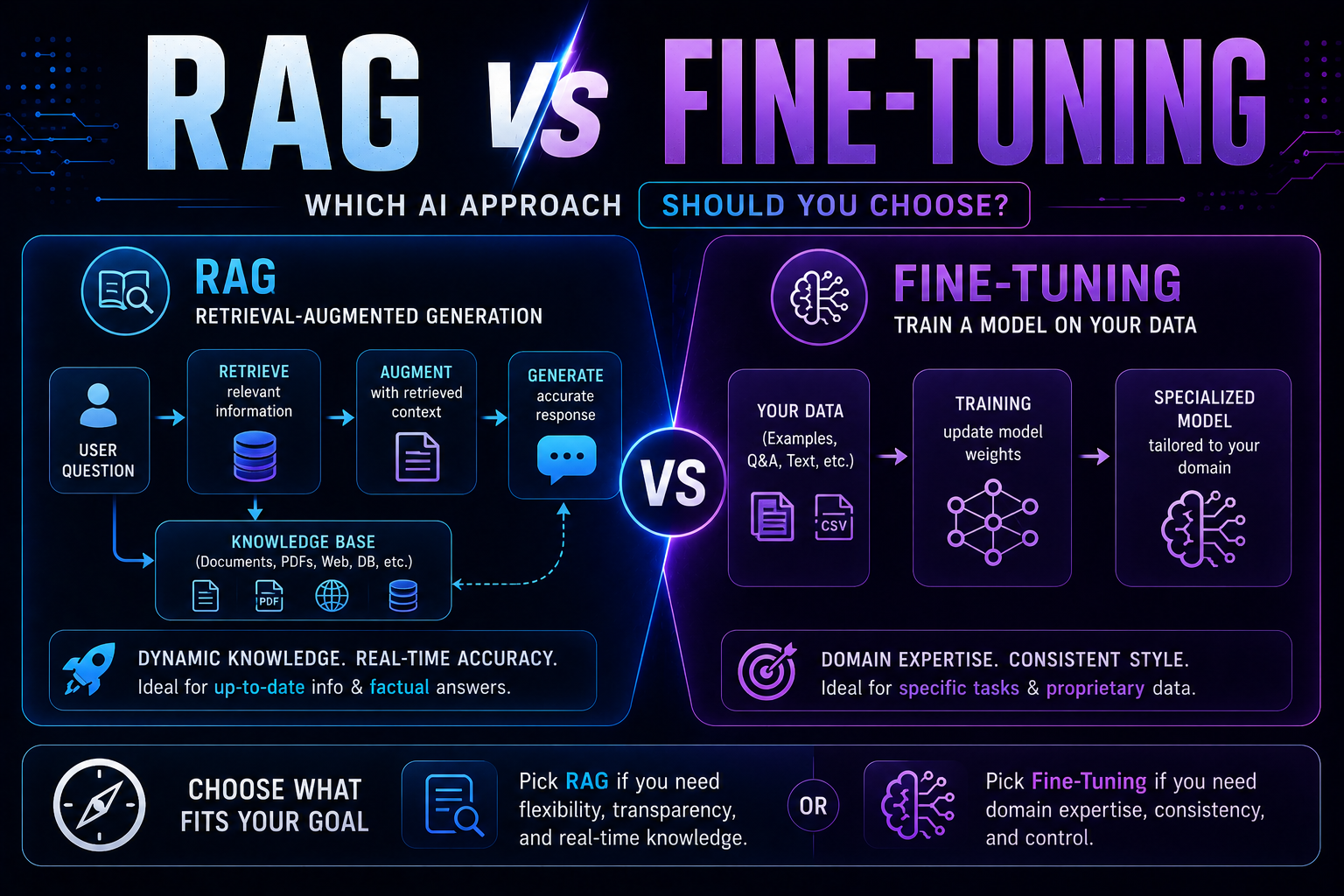
255RAG vs fine-tuning in 2026 — a practical guide covering when to use each, how both work with real code examples, the form vs facts distinction, hybrid approaches, true costs, and a decision framework to choose the right AI architecture for your use case.
May 22, 2026
2645 red flags every business must spot before buying AI software — covering demo manipulation, data privacy gaps, missing error handling, AI-washing, and lock-in contracts, with a 4-week vendor evaluation framework.

May 13, 2026
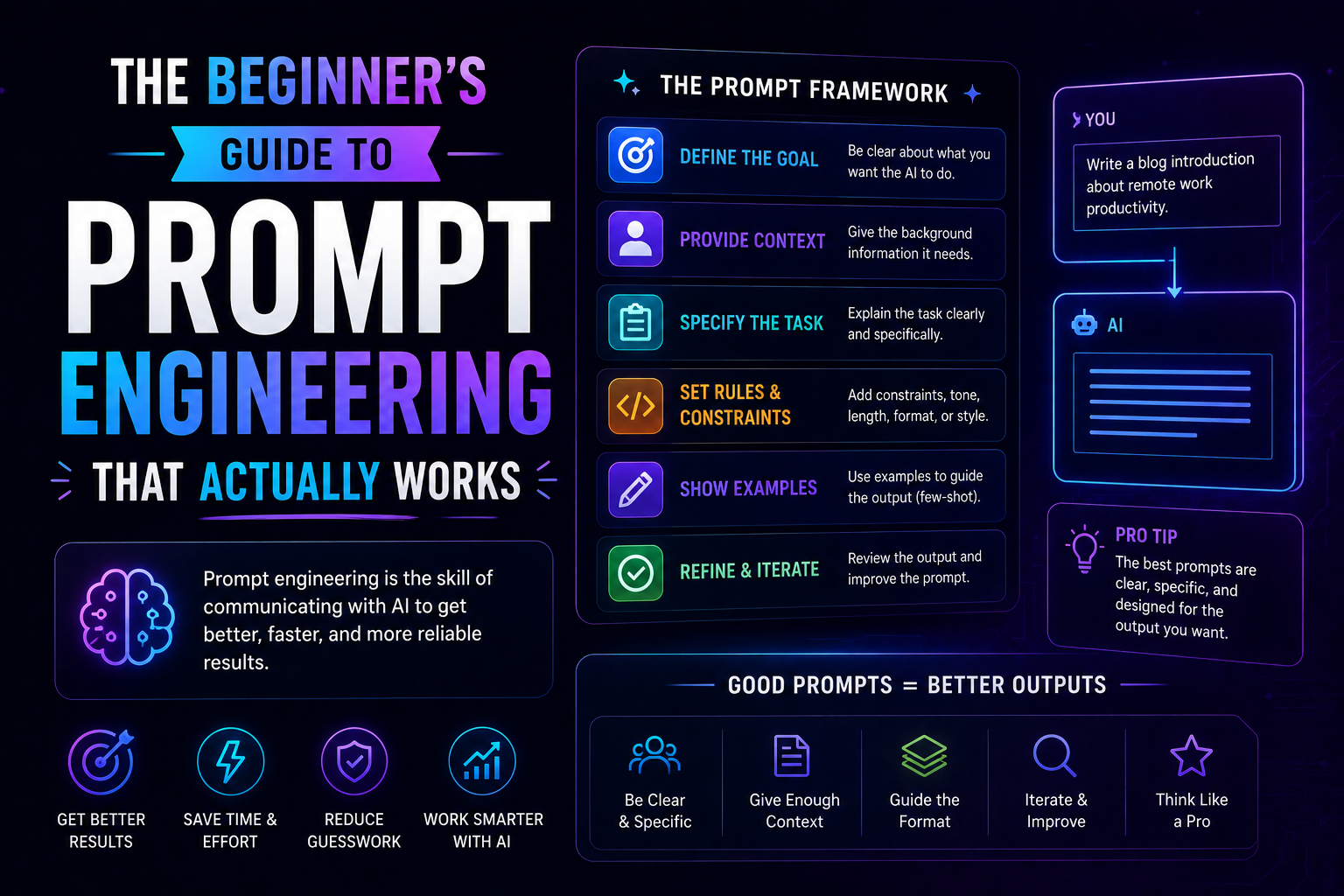
1243The beginner's guide to prompt engineering that actually works in 2026 — covering the RCTF framework, chain of thought, few-shot examples, output contracts, and model-specific tips for Claude, GPT-5, and Gemini.